

منقول من أرشيف منتديات الجودة العربية — الكاتب الأصلي: كاميليا رضوان إبراهيم — 2012-05-31
To illustrate its use, let’s insert a picture into a Word 2010 document. Note that your document really has to be in the Word 2010 format, and you shouldn’t be working incompatibility mode. If you are working in compatibility mode, the background removal tool won’t be available. Let’s insert that picture: you can do this by clicking Insert > Illustrations > Picture.
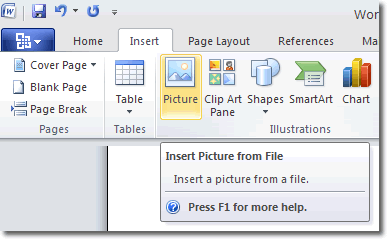
Navigate to where your picture resides and insert it. When the image appears in the document, you will find that because it is selected, the Picture Tools contextual tab is displayed.

أنظر إلى المثال:

Click on the background removal tool. This is what happens to the demonstration image:

The background that Word 2010 has detected is now highlighted in purple. If we press Enter on the keyboard, Word 2010 gets rid of the unwanted background and leaves us with this:
مثال آخر:
مرفق
0FFICE2010
أداة
تسمى
BackgroundRemoval tool
ووظيفتها حذف أرضيةالصورةكل المطلوب تحديد الصورة
Click
على
Background removal,
يظهر الخلفية باللون البنفسجى
ثمpress enter
وعلى فكرة الخاصية دى مش هاتظهر لو كانتالصورة فى
compatibility mode
لكم تحياتى
ولكم تحياتى
………………………………………………………………………………………………….
ننتظرك فلا تتاخرى علينا
إن شاء الله
شكرا على تشجيعكم ,
لك تحياتى وتقديرى